Guide
Cybersecurity Risks Everyone Faces at Home – And How to Overcome Them
Published Updated

During the pandemic and its lockdowns, digital ink has been spent on several topics. Avoiding or reducing the risk of cybercrime and privacy loss is at the top of the list.
- Cybersecurity risks and threats you can face at home
- Ways to recognize home network cyber-threats
- Ways to neutralize or reduce home network cyber-threats
When you think of work-related cyber threats, it doesn’t take long to notice a companion problem: the security risks to home devices and networks and personal privacy.
We’re talking about activities we all engage in at home during non-work hours.
You might be asking yourself, why bother worrying about home network danger of anything? Don’t cybercrooks ambush large companies for the contents of their deep pockets?
Yes, sometimes. But more and more often, ransomware, phishing, and malware attacks on home networks are in the headlines.
And equally important, financial assets and personal safety can be at risk. For a real scare, think about online child predators and identity thieves.
So, what are these risks, which lurk around us, often without our realizing their potential harm? The list of risky situations is surprisingly long. It’s good that the list of tactics we can use to reduce the risks is also long.
Updated 20 November 2026. Patricia Ruffio wrote this guide in June 2021. We’ve corrected advice that has aged (router checks, two-factor sign-in, supported systems, messaging encryption), added a tip on router updates and linked the sources.
Quick Summary:
This guide on maintaining security within home networks is designed for individuals managing wireless networks at home, in educational settings, or while traveling.We will start by identifying potential security threats to your network. Next, we will outline methods for detecting cyber threats on your network.
Finally, we will offer a comprehensive array of strategies to mitigate or eliminate these security risks.
Cyber Risks at Home
Taking home network security seriously is easy. First, read this guide. List all the ways that you and your family use computer devices. Next, walk through your home and think about how you spend non-work hours.
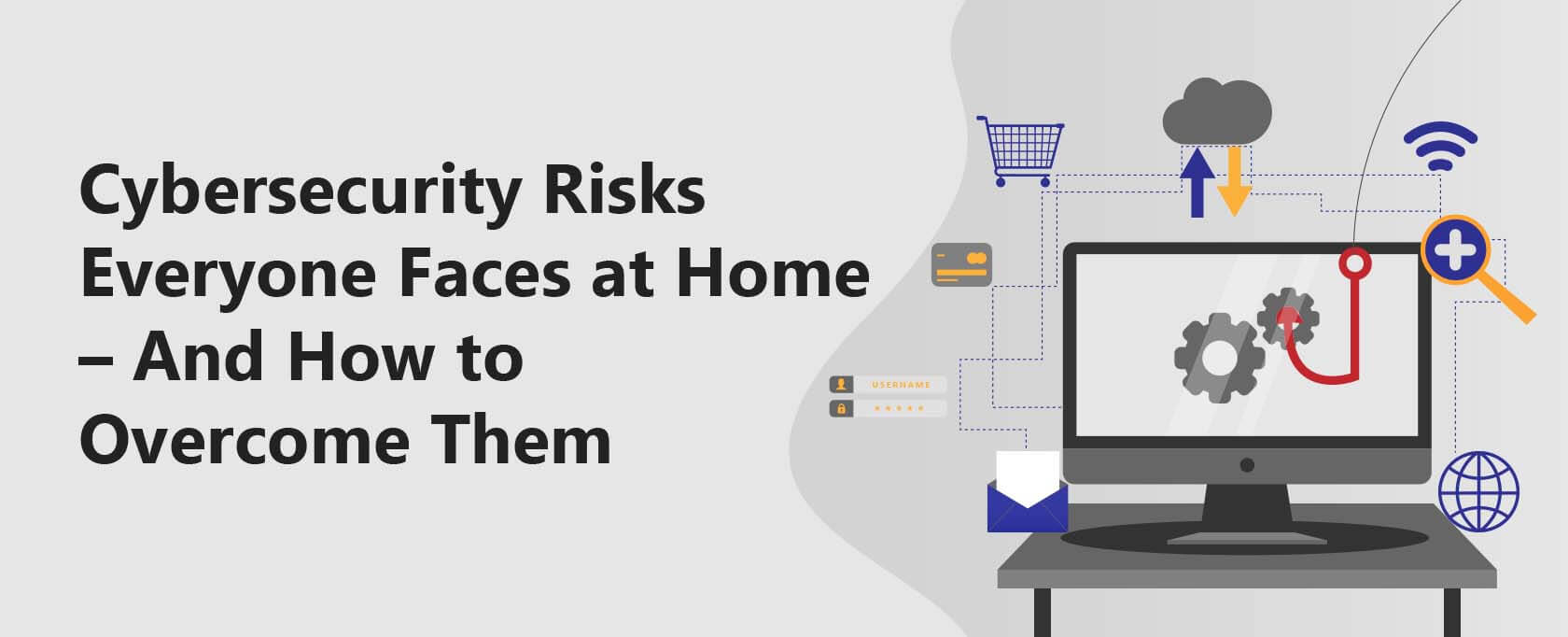
Here’s a list of how users engage with computer devices or commit behaviors that create cybersecurity risks. Users are seldom aware of their potential risk, so protective methods are seldom set up. So, let’s look at the risks that occur:
- When you shop. Data breaches occur, customer data is sold to dubious third parties, and voila! In Target’s 2013 breach, for example, hackers stole data from about 40 million credit and debit card accounts. Stolen cards like these are sold on the black market.
- When you use telecom apps. The dangers here include malware attacks or mobile or smartphone vulnerabilities. Cybercriminals exploit vulnerabilities in your mobile phone or smartphone hardware as well as the design of smartphone apps.
- When you mistake identities online. Phishing attacks (a type of social engineering) are scary because they take so little time and lack of attention to happen.
Cybercriminals trick people into revealing sensitive information by sending email messages, supposedly from a bank, an “important” business, or government organization.
If the recipient doesn’t stop looking for identifiable signs of phishing (there are quite a few), watch out! A click of a link takes them down a digital rabbit hole, where cybercrooks can get access to credit card information and other sensitive financial and personal data.
- When you expose personal data. It’s amazing how many ways there are to expose personal data and suffer identity theft that often follows. Engaging in business transactions such as e-commerce is a big factor.
But leaving resumes, home addresses, bank cards, social media photos, and video information in the open can also lead to identity theft, phishing emails, and data breaches.
- When you have fun online. Regarding online security, nowhere is safe, even online gaming sites. On the contrary, online gaming traffic spiked during the pandemic. Common game site scams direct gamers to third-party websites, gather gamers’ IP addresses, and target child gamers.
- When you bank online. Unless your home networks include a growing list of protective hardware and software, your risk of hacker intrusion, ransomware, and identity theft increases. This is true for wi-fi and mobile devices.
- When you seek healthcare. Healthcare data hacks and ransomware occur when bad actors get into healthcare databases containing sensitive information.
Identity theft, ransomware, and health insurance fraud often occur when these databases are breached. If you’re in the US, our Healthcare Data Breach Lookup shows whether your doctor, hospital, insurer or pharmacy has reported a breach affecting 500 or more people to HHS.
- When your children are online. Two parents’ worst nightmares—cyberbullying and sexual predation—are familiar to officials who monitor online crime. There’s no federal law aimed at bullying, but every state has its own rules, and in some states bullying is in the criminal code. Cyberbullying that crosses into threats or harassment can also fall under a state’s harassment or stalking laws.
Online predators trade illegal, lewd photos of children via email, peer-to-peer programs, or the dark web. Sexual predators try to lure children into offline meetings, which can lead to serious crimes. In the US, report suspected online exploitation of a child to NCMEC’s CyberTipline.
Diagnosing Cyber Risk at Home
The risk represented by this list makes ongoing monitoring more essential than ever. That means monitoring is one more task to add to your home network maintenance chores. (Do you have a security to-do list? If you’re like most folks, you don’t, and you probably never thought that you would have one.)
By now, you should recognize the potential risk and harm of running an unmonitored wi-fi network at home. The payoff for the extra effort: finding and responding to intrusions by bad actors, ideally before they can do real harm.
Detecting hackers on your network
What does it take to detect hackers in your network? A list of indicators and persistence. Here is a list of indicators that cyber intruders have discovered your network:
- An unusual spike in activity. When hackers enter your network, they can piggyback on your bandwidth. When they do, the indicator is an unexplained increase in internet traffic or a noticeable, consistent slowing of your internet connection.
- Your firewalls are uninstalled without human effort. Certain types of malware can disable or uninstall your firewall. If your firewall lists as disabled, start investigating a possible intruder right away.
- Your computer starts operating on its own. Does your cursor move across the screen? If so, an intruder might have gained remote access to your computer. That means someone else can install or uninstall software or remove security measures.
- Your web browser’s default home page changes. Sudden changes to your default browser or unexpected redirects to an unfamiliar page usually means security trouble. This is especially true with browser redirects. Attackers might send you to a fake website and gather financial or personal information.
- Somebody asks you to give access to a program. If an unknown program makes that request, think “security alert.”
You can take active steps to check if someone is hijacking your network.
- Identify which devices connect to your network. Open your router’s admin page or app. The address (often 192.168.0.1 or 192.168.1.1) and the login are usually printed on a label on the router. Look for a list called something like Device List, Attached Devices or Connected Clients.
- Check which devices are associated with your network. Match the names and MAC addresses on that list against the phones, computers, TVs and smart gadgets you own. Don’t go by IP addresses: the router hands them out and they change. An unfamiliar entry isn’t always an intruder either. iPhones, Macs and most Android phones join each network with a private Wi-Fi address instead of their hardware one, so your own phone may show up as a stranger. If a device stays unexplained, change your Wi-Fi password; everything you own will then have to reconnect with the new one.
Depending on the number of devices in your home network, this task might take some time. However, it’s a worthwhile endeavor if you’re responding to unusual network behavior. If you think malware is already on one of your devices, our guide to how malware spreads over Wi-Fi lists the signs and what to do.
Hardware and software solutions
Screamer headlines about cybercrime, privacy loss, and mammoth data breaches can discourage anyone. Fortunately, there are plenty of software and hardware products (some are free) that you can use to keep the crooks at bay.
Here are six security products that are suited for wi-fi network use. Instead of recommending specific products, we’re listing the capabilities that give you the most protection for your purchase dollar.
Device tracking software: Android and iPhone devices have built-in capabilities that track lost or stolen phones. Look for software apps that add to those capabilities by making tracking and recovering a lost device and its data easier. Consider apps that:
- Generates a report when a device goes missing. The report should include GPS tracking coordinates and active nearby wi-fi locations.
- Provides hardware information about the device (IP, MAC address, and serial number) to confirm that it’s yours.
- Enables you to configure control zones. These are specific areas on a map that the device shouldn’t leave. If you preset the zones, the device will notify you if it’s taken out of bounds.
Password managers: Too many people use their cat’s name to log into their Amazon, email, and social media accounts. If your family members haven’t met password management software, introduce them today.
Most password managers help you create strong and unique passwords for online accounts and enter usernames, passwords, credit card numbers, and addresses into websites and supported apps. However, you might want to consider a more advanced design, which includes:
- Organizing URL addresses, notes, bank accounts, driver’s license information, and credit card numbers into several vaults and tagging them as needed.
- Knowing when a site you use has been compromised (and you must change the password immediately).
Antivirus tools: You’ll find antivirus tools for smartphones, computers, and tablets. Some apps provide low-cost options that can strengthen devices and data security. Of course, you want your app to do regular scans by detecting threats and vulnerabilities and checking apps for malicious content before installing them. However, these advanced capabilities might provide what you need:
- Block malicious links on the web.
- Verify the security of wi-fi networks.
- Alert you if an online account has been hacked.
- Provide a virtual private network (VPN), which encrypts internet traffic over any network.
Virtual private networks: VPNs create an encrypted link between your device and a VPN server, which then passes your traffic on to the sites you visit. This approach provides an extra layer of protection by encrypting Web traffic. The goal: keeping people on your network and your internet provider from seeing what you do online. The VPN company itself can still see which sites you connect to, so pick one you trust.
- Offer fast speeds over short and long distances.
- Secure connections with a modern protocol such as WireGuard or OpenVPN.
- Can be used on several devices at the same time, with unlimited bandwidth.
Encrypted text messaging: End-to-end encryption is now standard in the big messaging apps. Signal and WhatsApp encrypt chats and calls end to end by default, and Facebook Messenger switched it on by default for personal chats and calls in December 2023. Telegram is the exception: its regular chats aren’t end-to-end encrypted, only the “secret chats” you start by hand.
Network scanners: Yes, operating home wireless networks is becoming downright fussy, and we have the Internet of Things (IoT) to thank for it. Network scanners are a new product category in which technology solves a problem created by—you guessed it—technology.
Each scanner helps you learn which IoT devices connect to your wi-fi network and troubleshoot problems with the network and devices. However, you can also look for scanners that:
- Run internet speed tests.
- Provide detailed device information such as IP address, MAC address, and the device name, model, and vendor for each device.
Taking an Active Role in Reducing At-Home Risk
Though relatively easy to access and use, wi-fi networks are not always secure. Learning how to secure your wireless home network against cybercriminals is a smart move.
Reducing Cyber Risk at Home
No need to wait passively until disaster strikes. Here are 18 ways to avoid or reduce the risks of at-home cybercrime and privacy loss.
- Separate work and personal devices. You’ve probably heard this tip more often. Yes, it’s easier said than done, but it’s important to carve out boundaries between work and home life. If you can do the same for your mobile devices, that’s even better.
- Change the name of your default home network. Changing your network’s default name makes it harder for malicious attackers to know what type of router you have. If a cybercriminal knows the manufacturer’s name of your router, they will know what vulnerabilities that model has. Also, disclosing too much personal information on a wireless network might expose you to identity theft.
- Set strong and unique passwords and PINs. Many wireless routers still come with a default username and password, which you need to set up the router. As soon as you get the router home, change both. Newer models often ship with a unique password printed on a label, and in the UK universal defaults like “admin” have been banned on new connected products since 29 April 2024. A good wireless password should be at least 20 characters long and include numbers, letters, and various symbols.
- Protect Internet of Things devices. Check which devices connect to your home network. Most smart devices can’t run antivirus software, so protect them another way: change their default passwords, install firmware updates, and put them on your router’s guest network so a hacked camera can’t reach your laptop. Our guide to smart home devices shows what each one collects.
- Enable two-factor authentication, and use an authenticator app. The two-factor authentication method grants access to network locations, assets, and privileges but only after people logging on present the right answers to access challenges.
These days, TFA typically involves password authentication and a one-time code or push notification. While convenient, text messages are losing favor as the second factor in this process. In December 2024, after hackers linked to the Chinese government broke into US telecom networks, CISA told highly targeted people not to use text messages as a second factor at all. Why? Texts aren’t encrypted, and attackers have learned some slick workarounds, from SIM swaps to fake login pages that grab the code. Where a site offers passkeys or a hardware security key, use those, since they resist phishing. Otherwise, an authenticator app beats a text message. - Encrypt your devices. Encryption is the process of encoding information so only authorized parties can access it. Without your PIN, password or fingerprint, encryption keeps strangers from reading what’s on your device. Phones encrypt their storage once you set a passcode; on a computer, check that BitLocker or Device Encryption (Windows) or FileVault (Mac) is on.
- Invest in a password manager. These useful tools help you create, remember, and share strong passwords with family members. They also make it easy to use a unique password for each website.
- Use only supported operating systems. New vulnerabilities often affect old versions of operating systems no longer supported by their developers. Always use a supported system and the latest version if your device allows it. Windows 10, for example, lost regular support on 14 October 2025. Home PCs enrolled in Microsoft’s Extended Security Updates get security fixes until 12 October 2027; after that, it’s Windows 11 or another system.
- Keep your operating system up to date. There can be long delays between when a vulnerability is found and fixed. Minimize this risk by ensuring that all devices apply security patches as soon as possible, ideally by automatic updates. Most modern devices will automatically apply updates by default.
- Keep other software up to date. It’s important to keep any installed applications up to date. Most modern software will check for and apply security patches automatically. Whenever possible, consider using a secure SaaS application rather than installable software. The SaaS app never goes out of date, and security management is in the hands of the provider, not you.
- Use antivirus software. It can help protect your computer from viruses, software, spyware, ransomware, rootkits, trojans, and other types of malware. It removes the malware it finds and blocks much of what comes later, but no antivirus catches everything. Windows comes with Microsoft Defender built in.
- Enable automatic locking. Lock any device that you walk away from. Most modern devices lock automatically by default. So, it’s easy to configure convenient intervals for you but not so long to make your device content vulnerable. Thirty seconds for mobile devices and five minutes for laptops are often suggested values.
- Enable Find My (Apple) or Find Hub (Android) and remote wipe. Google renamed its Find My Device service to Find Hub in 2025. When a device is lost or stolen, wiping it makes it much harder for bad actors to access your data, no matter how much time or determination they have.
- Wipe all devices before you share, sell, or dispose of them. When lending, giving, selling, or just throwing out an old device, return it to its factory settings. This virtuous habit prevents your data from being accessed after you no longer have control over your device. Before doing this, however, remember to back up or transfer any important information on the device.
- Turn off the wireless home network when you’re not home. Shut down your wireless home network when you don’t plan to use it for a long time. Consider doing the same thing with all your devices when you won’t be at home or when you use Ethernet cables. Leave it on if your alarm, cameras or smart thermostat need it to work while you’re away.
- Use a virtual private network. A virtual private network (VPN) enables you to send and receive data across shared or public networks as if you are directly connected to the private network. VPNs can reduce the risk of certain cyberattacks, such as man-in-the-middle attacks. They also hide your real IP address, and with it your rough location, from the websites you visit, and keep your internet provider from seeing which sites you open. A VPN won’t stop malware or phishing, though.
- Install a hardware firewall to secure your wi-fi network. A hardware firewall does the same thing as a software firewall. Its biggest advantage: it adds an extra layer of security to your network. Most of the best wireless routers include a built-in firewall, protecting your network from potential cyber-attacks.
- Update your router, and replace it when support ends. Turn on automatic firmware updates if your router offers them, use WPA3 encryption (or WPA2 with AES on older devices), and switch off remote management. Old routers that no longer get updates are a favorite target. In May 2025 the FBI warned that criminals were taking over end-of-life routers with TheMoon malware and selling access to them as proxies.
So, there you are, a truckload of when-to and how-to security maintenance information for your home network. It’s unlikely that you want to implement every suggestion we’ve presented here. But we hope that the number and variety of security tips and indicators encourage you to look at your home network with new eyes.
Summary and Conclusion
A good subtitle to this guide could be, “Vigilance pays.” Paying attention to the details of home wi-fi security is a serious responsibility. But the effort does pay off in terms of lower risk of losing money and peace of mind.
What you can do today: What can a family of online shoppers, bankers, gamers, healthcare seekers, and learners do to keep strangers out of their data and their lives?
There are many ways to fix the security risk problem, of course. The trick is to start with one or two scenarios, restore them, and then add others, fixing the issues they present as you go. The idea is to avoid getting distracted by a long list of to-do items. Here’s one that might work for you.
In the spirit of this slow-as-you-go approach, consider these steps:
- Identify your high-risk use case. Choose the scenario that most affects you and your family’s risk of getting hacked. If your family includes devoted gamers, who spend lots of time online, consider its risks and compare them to the risks of other network uses.
- Identify the hardware/software/best practices suited to lowering the risk. If you choose gaming as your #1security concern, consider the ways that hackers might go on the attack in a gaming environment. Then, consider the hardware, software, and best practices most likely to reduce the risk.
- Do research. Go shopping. Independent test labs such as AV-TEST and AV-Comparatives publish regular results on how well antivirus apps catch malware and how much they slow a PC down, which matters to gamers. Check them before you pick one that fits your family and your budget.
- Install hardware and software. This procedure assumes that all readers will have the knowledge and experience to do this process on their own. If you prefer to delegate the process to a third party, there are qualified managed services providers in your area, just a phone call or click away.
We hope this startup guide to home wi-fi network security will help you get beyond a problem that few people talk about. If you work from home on your own devices, our BYOD guide covers the risks and what your employer can see on them.